
Online Excel editor
Edit Excel files online for free. Open XLSX, XLS, ODS or CSV in your browser, update cells and formulas, and save the result to your device.
Open the editor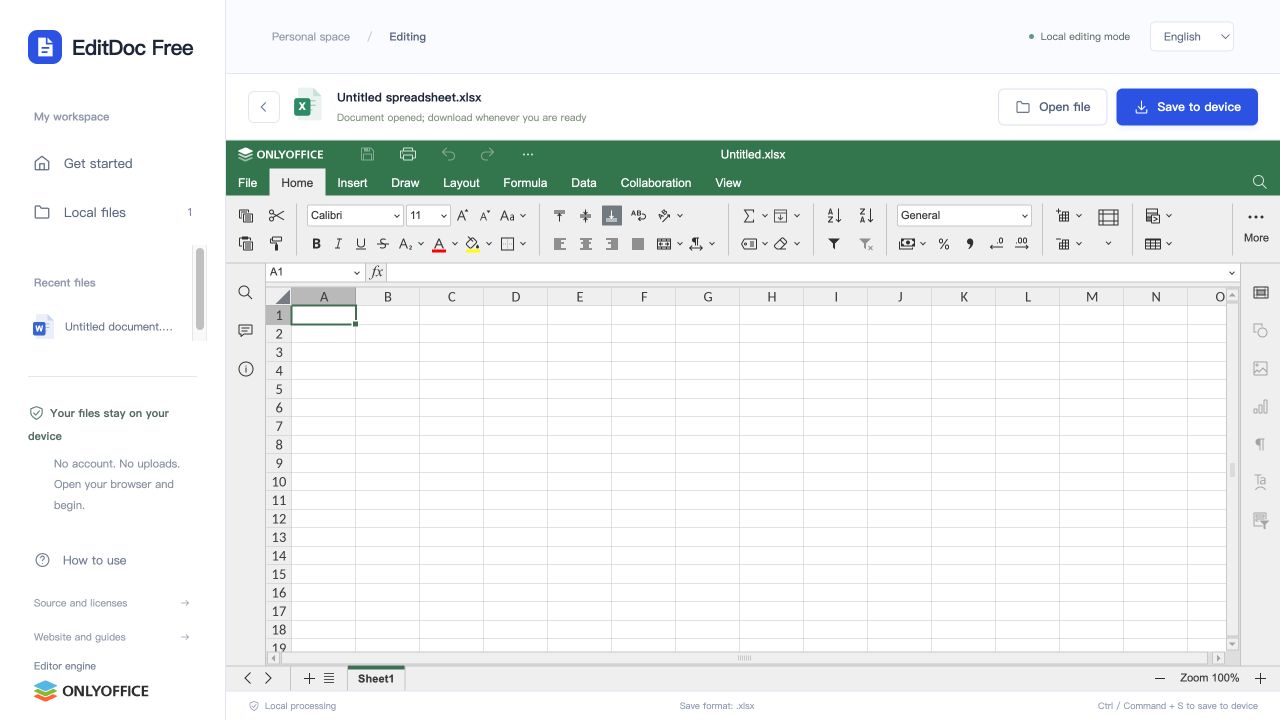
Update cells, formulas and worksheet formatting
Use the spreadsheet editor to update a budget, enter values or check a calculation. Select a cell to enter text or a formula, then review number formats, column widths and other sheets. Choose XLSX when workbook structure and formatting matter.
Supported files and limits
- Input formats
- XLSX, XLS, ODS, CSV
- Download format
- XLSX / CSV
- Input file limit
- 100 MB
XLSX, XLS and ODS workbooks can be opened and download as XLSX. CSV files are also supported and save as CSV, which does not preserve workbook formatting or multiple sheets. Individual input files must be no larger than 100 MB.
Open. Edit. Take it with you.
- 1
Choose a file
Open the editor and drop a local Office file into the workspace. You can also create a blank document, workbook or presentation.
- 2
Make your changes
The editor loads in your browser. The first launch downloads its resources and may take a little longer.
- 3
Download your copy
Choose Save to device, then check the downloaded file. Your original file is not overwritten by the website.
Before opening a file
Use an up-to-date desktop browser and keep your original file. The first visit loads a substantial editor engine and fonts; opening or exporting may take longer on a slow connection. After it loads, document processing happens on your device. There is no account, shared cloud drive or real-time collaboration.
Will a CSV file keep formulas and formatting?
CSV is a text table, not a full workbook. It does not preserve cell styles, charts, multiple sheets or workbook formula behavior. CSV inputs save as CSV here; use an XLSX input or start a new spreadsheet when you need an XLSX workbook.
Will every file look exactly the same?
Not always. Complex layouts, unsupported fonts, embedded objects and advanced Office features may differ. Macros are not executed. Review the exported file before sharing important work.